How to Remove the Background from a Photo on iPhone
Quick answer
To remove the background from a photo on iPhone, open it in Magic Eraser and tap once to cut out the subject automatically. Fine-tune the edges with a brush, then save a high-resolution PNG or JPG with no watermark, ready for Instagram, Etsy or Shopify.
A clean cut-out makes a product photo, a profile picture or a sticker look far more professional. The good news is you no longer need desktop software to get one. On an iPhone the whole job takes a single tap plus a little tidying.
Can you do it with the built-in apps?
iOS can lift a subject from a photo: press and hold on an image in Photos and it copies the cut-out. That is handy for a quick sticker, but you cannot easily correct the edges, drop in a new background, or export a clean PNG at full resolution. A dedicated background remover gives you that control.
Step by step
Here is how to do it with Magic Eraser.
- Install Magic Eraser and open the photo you want to edit.
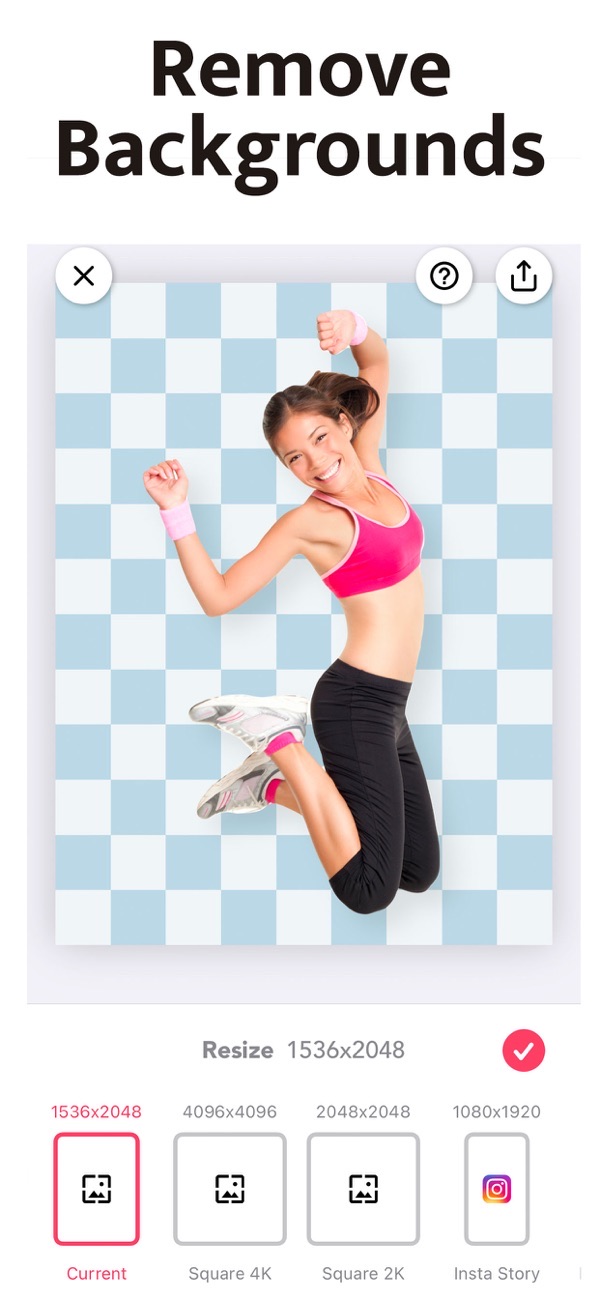
- Let the app remove the background automatically with one tap. The subject is lifted onto a transparent, checkerboard canvas.
- Zoom in and use the custom brushes to tidy the edges. Restore anything the AI trimmed too far, or erase any leftover background. The brush offset keeps your fingertip out of the way.
- Choose what goes behind your subject: leave it transparent, or add a solid colour, a gradient, or your own image. You can also pull in stock photos to sit behind the cut-out.
- Pick a canvas preset for where you are posting, such as Instagram, Shopify or Pinterest.
- Save in high resolution as a PNG or JPG. There is no watermark, even on the free version.
Tips
- Export a transparent PNG when you plan to drop the subject into another design or collage later.
- Add a realistic shadow under the cut-out so it does not look pasted on.
- For product listings, a plain white background keeps the focus on the item and matches most marketplace requirements.
Frequently asked questions
Does Magic Eraser add a watermark?
No. You can save in high resolution with no watermark, even on the free version.
Can I remove objects as well as the background?
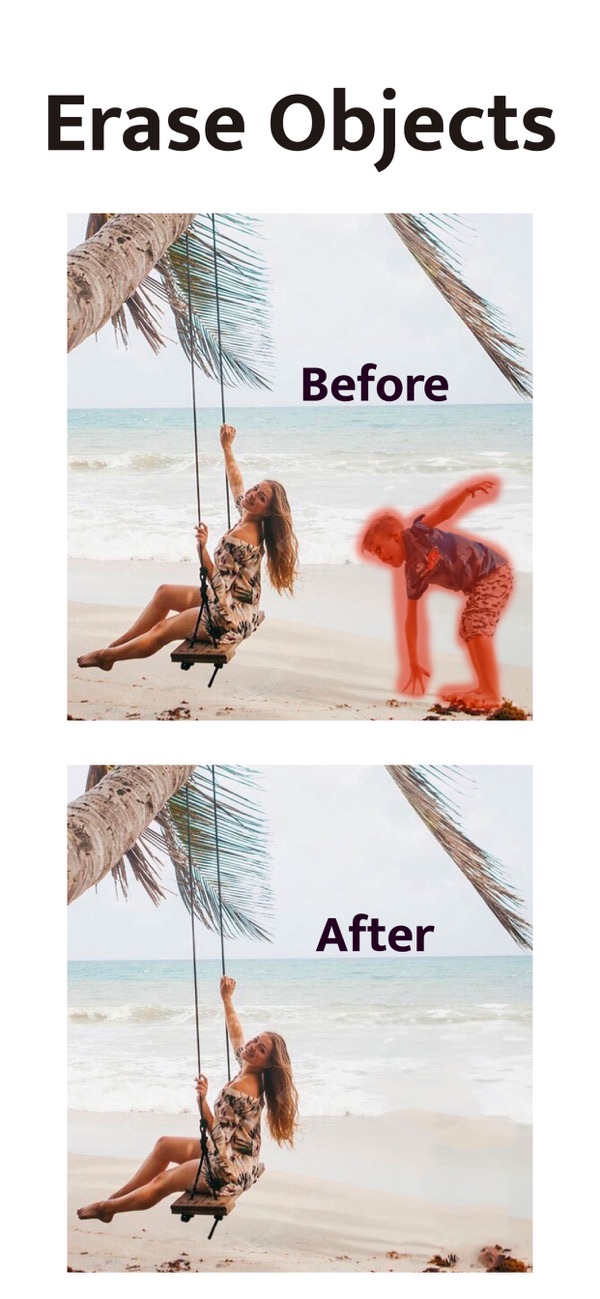
Yes. As well as backgrounds, it can erase unwanted objects from a photo.
Is it free?
Yes. Magic Eraser is free, with an optional subscription that unlocks all brush shapes and removes ads.
Get Magic Eraser
Free to download on the App Store for iPhone and iPad.

Keep editing
Remove a video background
Erase the background from a clip with no green screen.
 Using Magic Video Background Eraser
Make a photo collage
Combine up to 20 photos with free layouts and frames.
 Using Photo Collage Maker
Remove blemishes and retouch skin
Clear spots, whiten teeth and even out skin tone.
 Using Photo Editor