How to Remove the Background from a Video (No Green Screen)
Quick answer
You can remove the background from a video on your iPhone without a green screen. Magic Video Background Eraser cuts the subject out of the clip on-device, then lets you drop in a colour, gradient or your own photo, or export a transparent video to use in other projects.
Swapping the background of a video used to be a studio job. Now the same effect works on a clip you have already filmed, straight from your camera roll, with the processing handled privately on your device.
Can you do it with the built-in apps?
Removing a moving background once meant a green screen, careful lighting and desktop software. iPhone can lift a subject from a still photo, but not from video. An app that runs the cut-out on-device, frame by frame, brings that effect to any clip you already have.
Step by step
Here is the flow using Magic Video Background Eraser.
- Install Magic Video Background Eraser and bring in the video you want to edit.
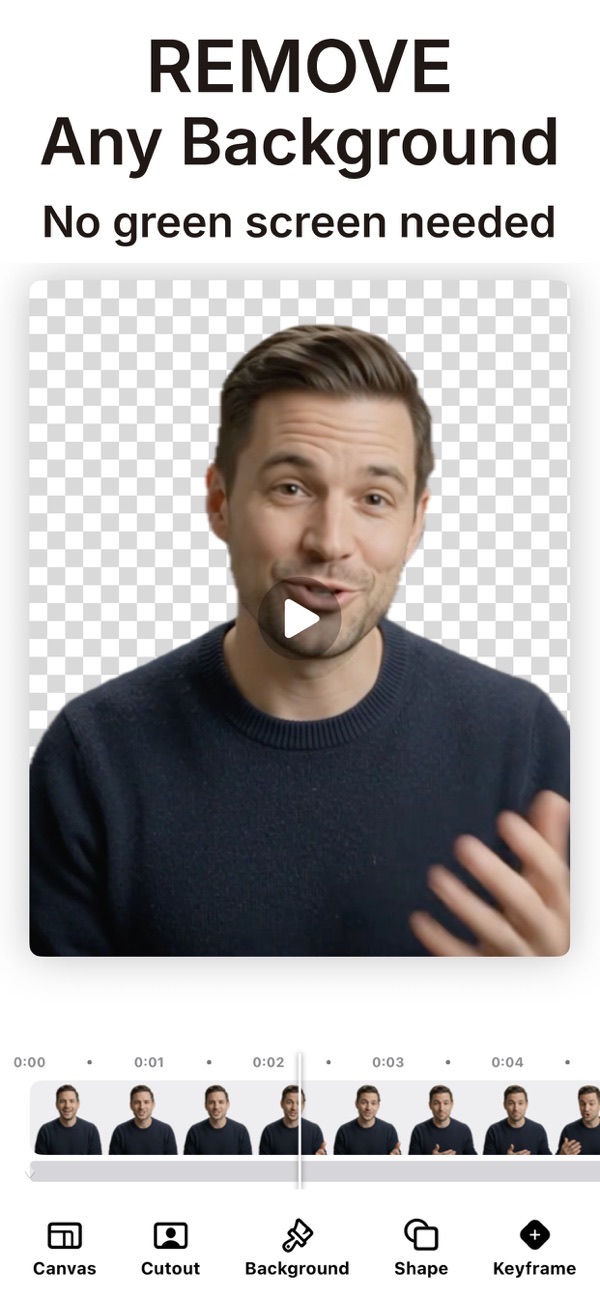
- The app erases the background automatically using on-device intelligence, leaving your subject on a transparent canvas. Nothing is uploaded, so your video stays on your device.
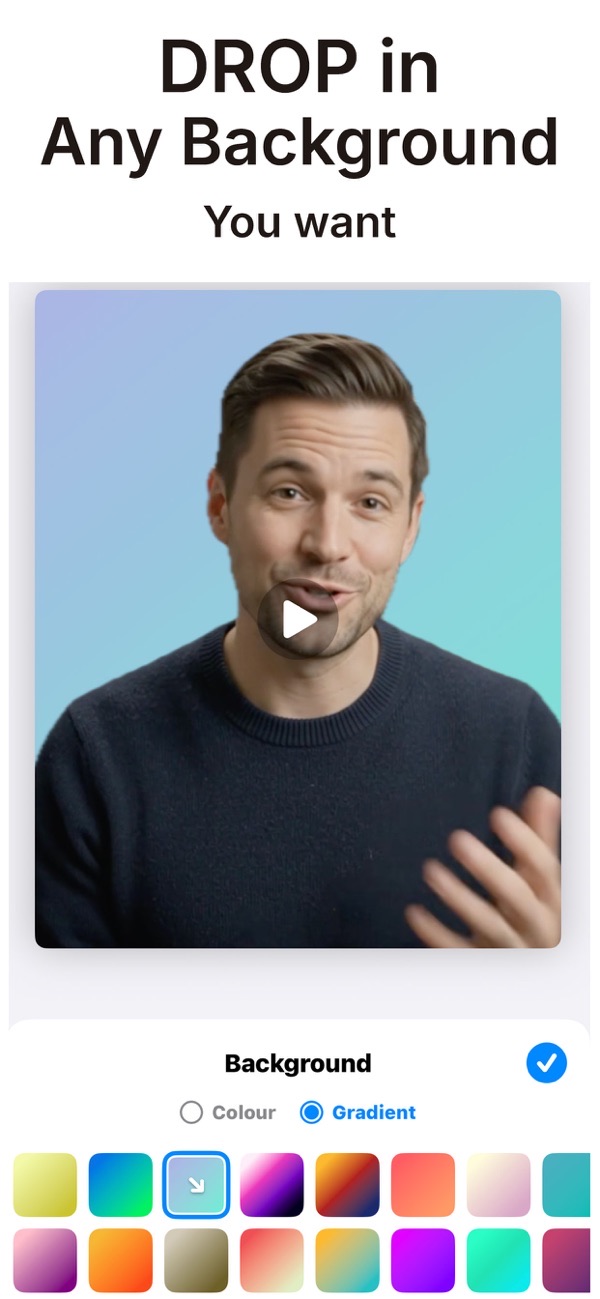
- Open the Background options and choose what sits behind your subject: a solid colour, a smooth gradient, one of the ready-made scenes, or your own photo.
- Use the Canvas and Shape tools to crop the frame, and reposition your subject with keyframes so it sits exactly where you want.
- Scrub the timeline to check the cut-out holds up across the whole clip.
- Export in high quality. To place your subject into another edit, export a true transparent video and layer it into your own project.
Tips
- A transparent export is ideal for reels, presentations and creator overlays where you want just the subject and no background.
- A plain gradient often looks cleaner behind a talking-head clip than a busy photo.
- Because everything runs on-device, you can work offline and nothing is tracked or uploaded.
Frequently asked questions
Do I need a green screen?
No. The background is removed automatically, with no green screen or studio setup.
Is my video uploaded anywhere?
No. All processing happens on your device, so your videos never leave it.
Can I export a transparent video?
Yes. Transparent video export is part of the Premium features, so you can layer your subject into other projects.
Does Magic Video Background Eraser add a watermark?
No. You can export your video with no watermark, even on the free version.
Get Magic Video Background Eraser
Free to download on the App Store for iPhone and iPad, with no watermark on what you export.

Keep editing
Remove a photo background
Cut out the subject and save a clean PNG, no watermark.
 Using Magic Eraser
Blur a face in a video
Hide faces, plates and logos in a clip, with auto-tracking.
 Using Blur-Video
Slow down or speed up a video
Ramp sections of a clip, with corrected audio.
 Using Slow-Fast Motion