How to Remove Blemishes and Retouch Skin on iPhone
Quick answer
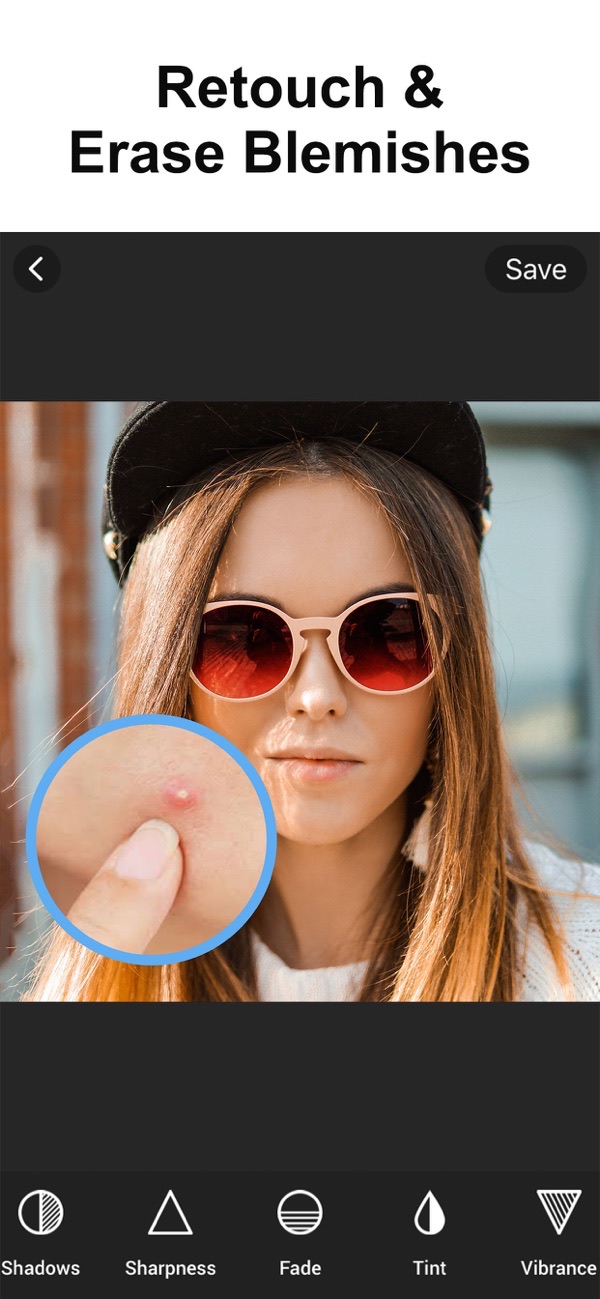
To remove blemishes on iPhone, open your photo in Photo Editor: HSL & Skin Tools, tap the Blemish Remover and touch each spot to clear it. You can also whiten teeth and remove red-eye, then fine-tune colour and export a clean, natural-looking portrait.
A single spot or a patch of uneven light can pull attention away from an otherwise good portrait. Clearing it takes seconds with the right tool, and keeping the retouch light is what makes it look natural rather than airbrushed.
Can you do it with the built-in apps?
The Photos app has solid brightness and colour controls, but no tool for clearing a spot or retouching skin. To tidy a blemish or whiten teeth you need an editor with dedicated beauty tools, ideally alongside the colour controls so you can finish the whole photo in one place.
Step by step
Here is how to do it with Photo Editor: HSL & Skin Tools.
- Install Photo Editor: HSL & Skin Tools and open the portrait you want to retouch.
- Open the Beauty tools and choose Blemish Remover, then tap each spot to clear it. Zoom in for the small ones.
- Use Whiten Teeth and Remove Redeye to tidy the rest of the face if needed.
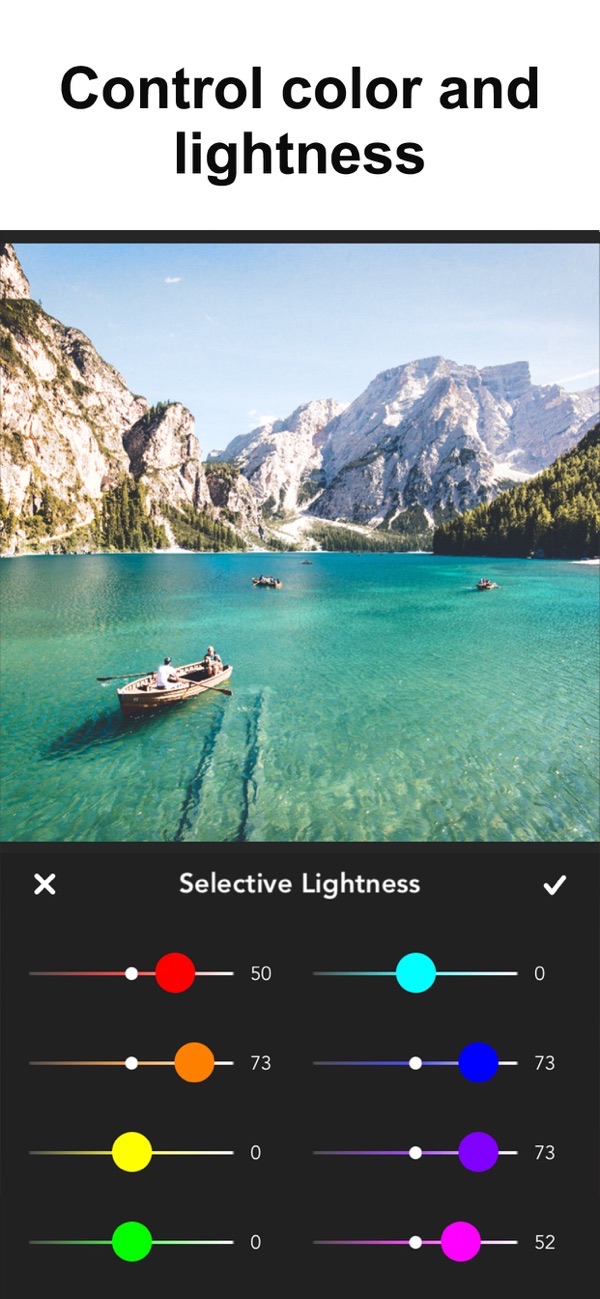
- Even out skin tone with the Selective HSL controls: nudge the saturation or lightness of a single colour range for a natural finish.
- Adjust the overall look with tools like brightness, contrast, highlights, shadows and vibrance.
- Add a filter if you want a consistent look for your grid, then save the finished photo.
Tips
- Work zoomed in and clear one blemish at a time, so the retouch stays subtle rather than smoothing the whole face.
- Selective HSL is handy for keeping skin tones consistent across a set of photos for your feed.
- A light hand on vibrance and contrast usually looks more natural than a heavy filter.
Frequently asked questions
Can I whiten teeth as well?
Yes. Alongside the blemish remover there are tools to whiten teeth and remove red-eye.
Can I keep my Instagram grid consistent?
Yes. Selective Hue, Saturation and Lightness let you match colours across your photos.
Is it free?
Yes. The app is free, with a Premium subscription that unlocks all filters and selective HSL tools and removes ads.
Does Photo Editor add a watermark?
No. You can save your photo with no watermark, even on the free version.
Get Photo Editor: HSL & Skin Tools
Free to download on the App Store for iPhone and iPad, with no watermark on what you save.

 Using Magic Eraser
 Using Photo Collage Maker
 Using No Crop