How to Blur a Face in a Video on iPhone
Updated 27 August 2026

Blur-Video — free on iPhone and iPad
Quick answer
To blur a face in a video on your iPhone, open the clip in a dedicated blur app like Blur-Video, drop a blur or pixelate shape over the face, and let auto-tracking follow it as it moves. Adjust the strength, then export the finished clip ready for YouTube, TikTok or anywhere else.
Sharing a video often means putting other people in frame: a bystander, a child, a number plate or a house number in the background. Blurring those details before you post keeps them private, and on an iPhone it only takes a couple of minutes.
Can you do it with the built-in apps?
The built-in Photos app is great for trimming and colour, but it has no tool for hiding a face or number plate inside a video. You can draw on a still photo with Markup, yet there is no simple way to cover a moving subject frame by frame. A purpose-built blur tool solves this by tracking the subject for you.
Step by step
Here is the full flow using Blur-Video.
- Install Blur-Video from the App Store and open it, then choose the video you want to edit from your library.
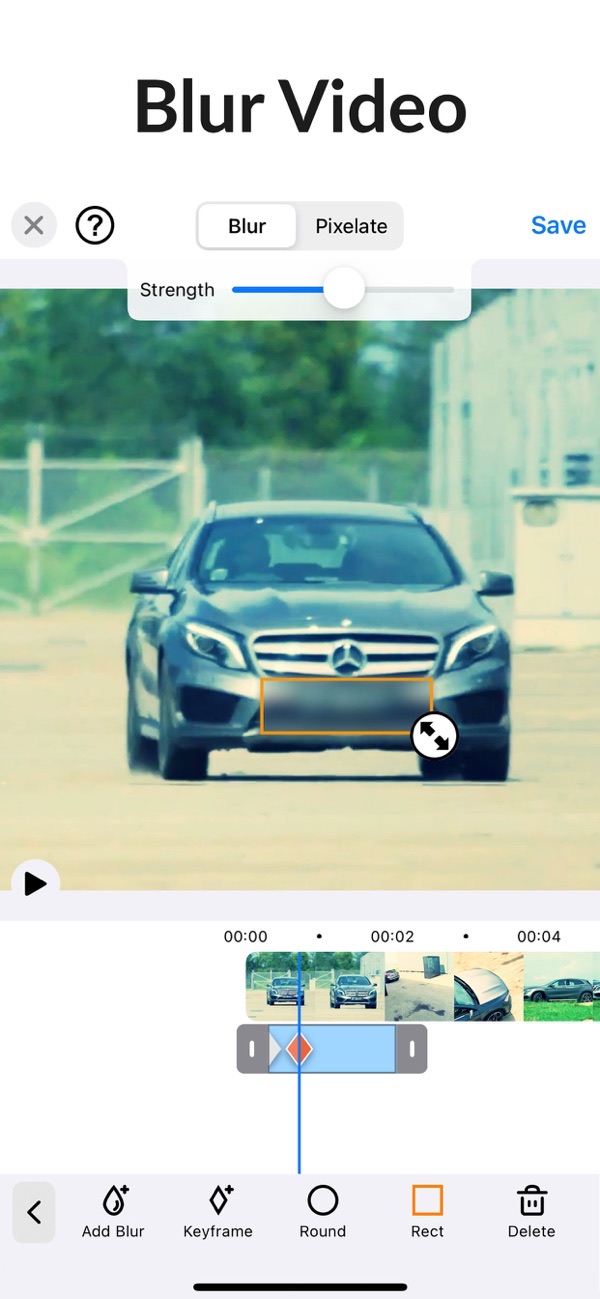
- Tap Add Blur and pick a shape, either a rectangle or an ellipse, then drag it over the face you want to hide. Because your fingertip sits on top of the very thing you are lining up, the offset control shifts the shape slightly away from your finger so you can see what you are covering.
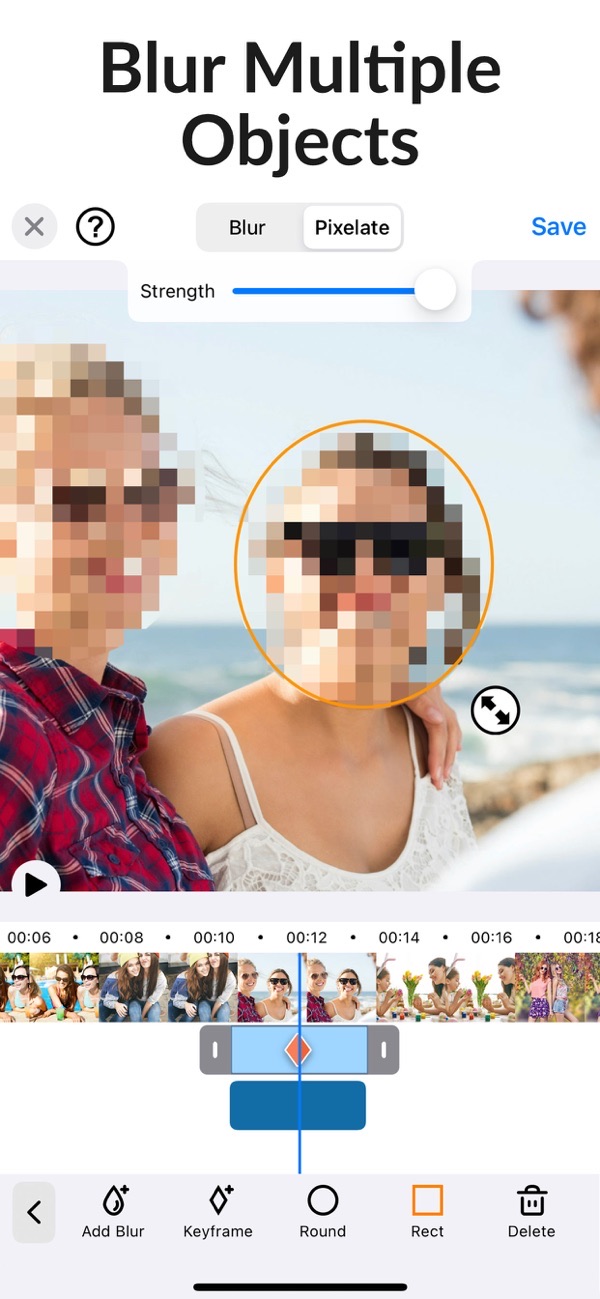
- Choose Blur or Pixelate at the top, and use the Strength slider to set how heavy the effect is.
- Set how long the blur lasts. Each blur area has its own duration, so it can run the length of the clip or cover only the few seconds where the face is actually on screen.
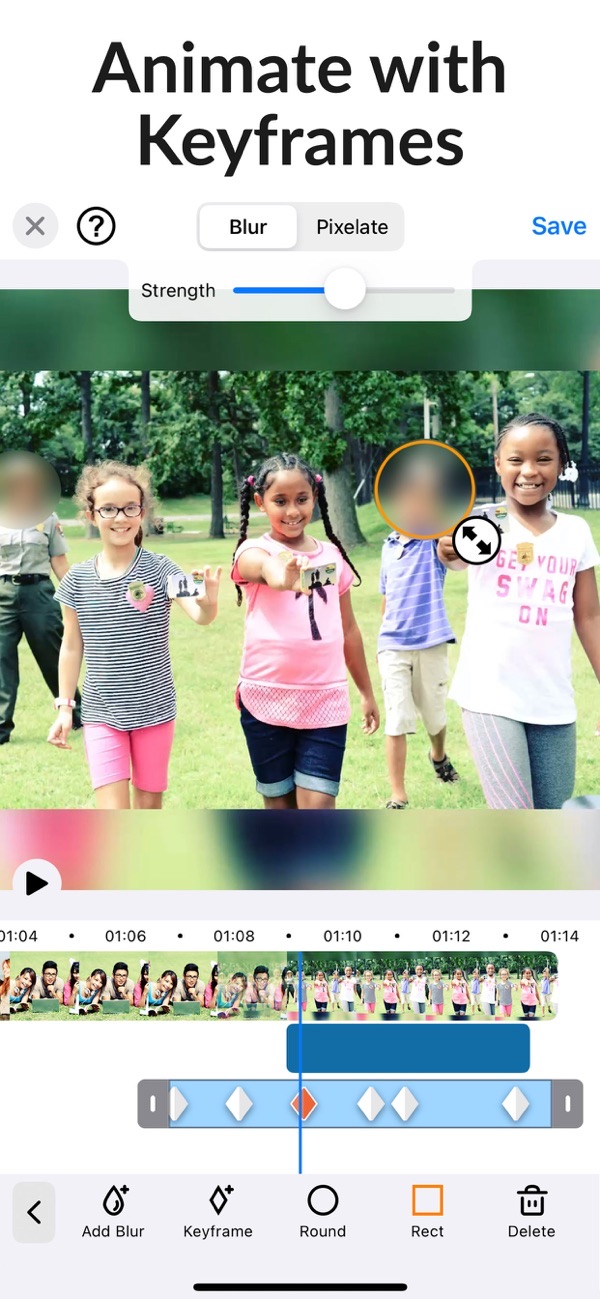
- Now make the blur follow the face. Turn on auto-tracking Pro and it locks on and tracks the face through the clip by itself. You can also do this by hand on the free version: set keyframes at points along the timeline and move the shape onto the face at each one.
- Need to hide more than one person? Add another shape and repeat. You can blur several faces or objects in the same video.
- Scrub the timeline to check the blur stays in place, then tap Save to export your video.
Tips
- Pixelate reads as a deliberate privacy choice, while a soft blur looks more natural. Try both on the same face and keep whichever suits the clip.
- Feathering Pro softens the edge of the blur so it blends into the footage instead of showing a hard box.
- Draw the shape a little larger than the face itself. When someone turns their head or steps towards the camera they grow in frame, and a tight shape can slip off the edge.
- Blur house numbers, screens and logos in the background too, not just faces, before you post to a public account.
Working with a still photo rather than a video? Blur Photo does the same job on a single image.
Frequently asked questions
Does the blur follow a moving face?
Yes. Auto-tracking locks onto a face or object and follows it as it moves through the video, so you do not have to reposition it on every frame. Auto-tracking is part of the PRO subscription; on the free version you can follow a moving face yourself by setting keyframes along the timeline.
Can I blur more than one face at once?
Yes. You can add multiple blur areas using ellipse or rectangle shapes in the same clip.
Is Blur-Video free?
Yes. Blur-Video is free to download and use, and it runs on both iPhone and iPad. You can blur, pixelate and follow a moving face with keyframes without paying. A PRO subscription adds auto-tracking and feathering, and removes ads.
Is there a limit on how long my video can be?
No. Blur-Video does not cap the length of the clip you work on, so a long recording is fine as well as a short one. Longer videos simply take longer to export.
Does it put a watermark on my video?
No. Blur-Video does not stamp a watermark on your video, on the free version or on PRO. What you export is your own footage with the blurring applied, ready to post.
Is my video uploaded anywhere?
No. Blur-Video does all the work on your iPhone or iPad, so the video you are blurring is not uploaded to a server. That matters when the reason you are blurring it is privacy in the first place.
Get Blur-Video
Free to download on the App Store for iPhone and iPad, with no watermark on anything you export.

Keep editing
Remove a video background
Erase the background from a clip with no green screen.
 Using Magic Video Background Eraser
Slow down or speed up a video
Ramp sections of a clip, with corrected audio.
 Using Slow-Fast Motion
Remove a photo background
Cut out the subject and save a clean PNG, no watermark.
 Using Magic Eraser